![[personal profile]](https://www.dreamwidth.org/img/silk/identity/user.png)
The Perfect "On The Go" Handheld
Aug. 5th, 2023 01:48 pm
Nothing is perfect, but with enough time, skill, and technical ability we can get close. This is also true with handheld gaming systems. Since the original Nintendo Gameboy we have had 40 years of different form factors, technological minification, and thousands of games produced. From this we can start to conceive what might be an ideal system for us as individuals.
Obviously, there are barriers many of us face. Not many have time, skill, or resources to design, build, and program an ideal handheld to play. The whole idea here is it is “on the go”, and you will never go anywhere if you intend to pursue custom building something from scratch that meets an ideal.
In 2023, a number of factors coincide to remove many barriers, and may make the amount of work an individual has to do to make a near perfect handheld for themselves a reasonable pursuit.
I recently explored this, and delved into a number of areas of interest that I thought I’d share. These interests are based off of my values and they may not align with your perfect handheld, but perhaps some of these do. I hope that you may find some of my findings interesting and helpful to you for enjoying “on the go” gaming.
Values
“On the go.” What does that mean? It could mean anything with a battery that you can play away from a wall plug, or maybe it needs a wall plug but can be carried in a backpack. For me, I wanted a single purpose device that can be mindlessly carried with me in my every day purse. This means it should weigh less than a pound, have battery life such that I can keep it unplugged for a day, get 3+ hours of onscreen time when in waiting rooms or transit, be small enough to fit in my bags that are bigger than a wallet, and have a headphone jack.
“On the go” also meant that I wanted games that can be picked up and played in small bursts. Playing grand games like Baldur’s Gate 3 that can have combat sessions that take hours probably wouldn’t be a good fit. However, emulators for classic handhelds like Gameboy, Gameboy Color, Gameboy Advance, Game Gear, etc would be great.
“On the go” to me means it can be tossed in a bag without worry of it breaking. I expect fairly good robustness, and/or a price that means if it does break (or is lost) it wouldn’t break my soul.
That still leaves a bunch of possible devices. There were some other factors extremely unique to me though:
You see, I love handhelds. I currently have a:
- PSP
- 3DS XL
- Switch
- Steam Deck
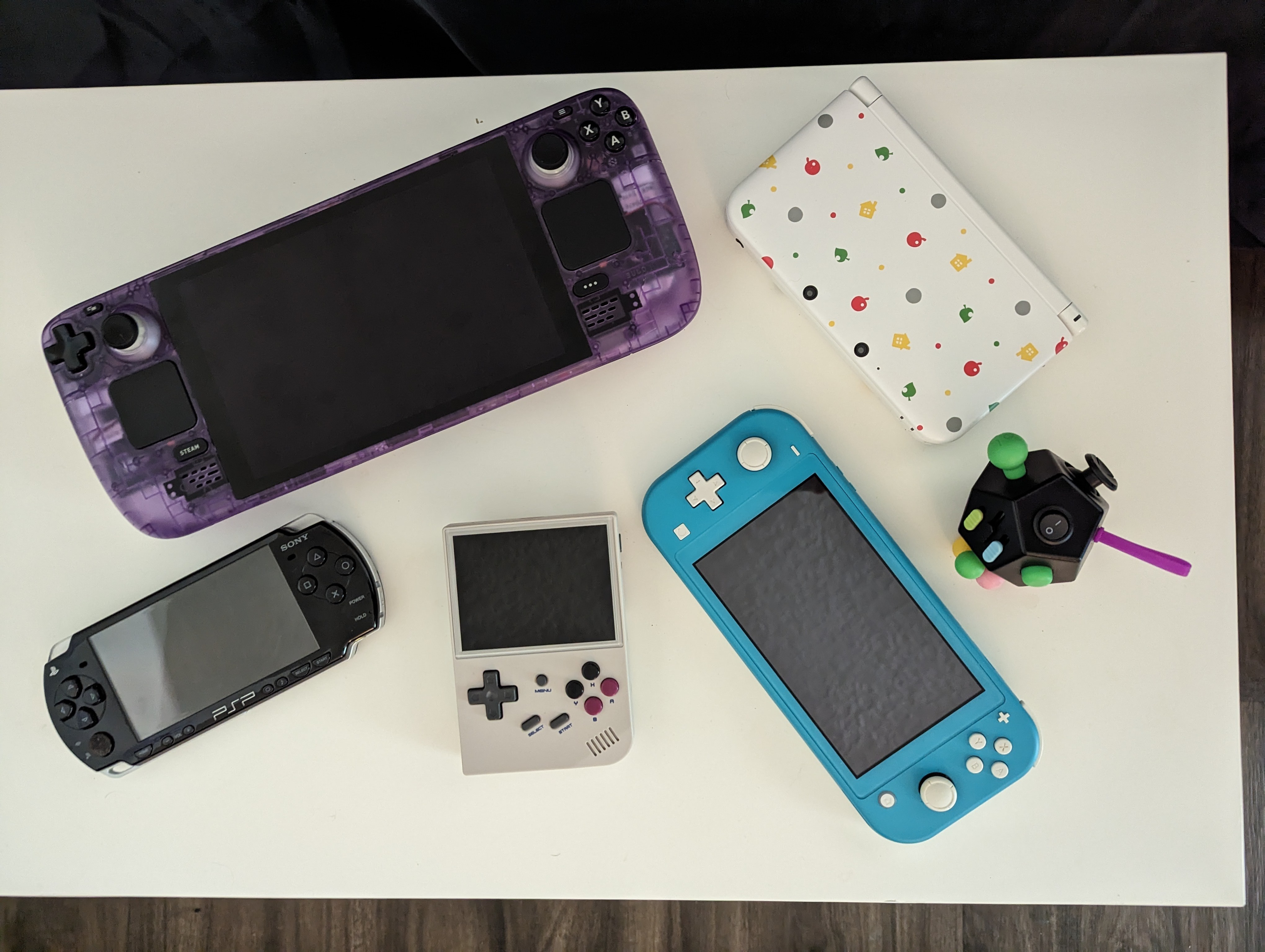
I love all of them, and play them all fairly regularly. To be honest though, the Switch and the Steam Deck don’t really fit my “on the go” needs. For some types of trips they work OK, but for every day they just aren’t great to carry around.
PSP is amazing. PSP games and PS1 games are super fun to play on this device. It does fit in my purse. It is an “on the go” device. However, the emulation of classic games is hit and miss. The screen doesn’t look great for games other than PSP and PS1 either.
The 3DS is fantastic as well. It can play all the classic Nintendo handhelds well, and they look good. However, the pick up and play aspect always felt a bit of a hurdle to me. You have to select Twilight Menu, go through folders, find the game you want to play, and then launch (or build a custom launcher). By that time my bus has come and I'm turning it off again.
So, I wanted something to fill the gap, that I could instantly play, had pretty good hardware, and to be honest had the form factor of the first few generations of Gameboys.
I also have hacked every console I own, and any perfect handheld would be open for me to customize however I wanted.
This creates a picture then of what my “perfect” device would be:
- Something like the original Gameboy form-factor, but a bit smaller (though not too small as I want it comfy)
- A battery that lasts at least 3hrs screen on-time and 24 hours in stand-by
- Weighs less than 1 pound
- Robust enough I can toss it in a purse without fear of breaking it
- Emulation with save states and near instant suspend/wake time
- Runs Linux and is open source
- Controls that “feel” like original hardware
This can fill the gap I have in handhelds to cover classic systems.
I also can just use the 3DS unless the price is right. So, lets say $50 max.
Options
Today, there are two major options that fit all of the above. The Miyoo Mini Plus and the Anbernic RG35xx. Both are popular and have pros and cons.
For me, it came down to size and plastic “feel”. The Miyoo is more popular, has wifi, and a battery that is slightly easier to remove. The Anbernic is slightly bigger, has more textured plastic, has a GPU (though it is disabled by default), and people report the controls and robustness are slightly better. There are some other differences, but these were the determining factors when I got it.
I didn’t want wifi, the ‘popular’ community was on Discord which I don’t use, the size of the Anbernic was more comfortable for me, the Anbernic was slightly more robust, and the hackability of the GPU later seemed interesting.
So, I got the Anbernic RG35xx.
Build and Design
The Anbernic comes in 3 different color ways. Gray, transparent white, and transparent purple. The gray looks a bit like the classic Gameboy and the other two look a bit like Gameboy colors. The form factor is similar to a Gameboy Pocket with four “trigger” buttons on the back for PS1 games.
The screen is really nice. It’s a 3.5” IPS with nice viewing angles. OCA lamination makes the screen look modern. It’s only 640*480 resolution, but this is perfect for the types of games we are playing at 3.5 inches.
It weighs less than half a pound.
The SOC is an Actions Semiconductor ATM7039 (Quad-core ARM Cortex-A9). The GPU is a Quad-core PowerVR SGX-544MP. It has 256MB of DDR3 RAM.
The battery lasts upwards of 6 hours of on-screen time.
It runs on micro-sd cards.
Inputs are USB-C, 3.5mm audio, and mini HDMI out.
It does have a speaker that is … OK. It's at least as good as the retro handheld speakers I’ll be emulating so, it’s fine.
The plastic case feels like it is a first party console. Buttons are rubber membrane (except the “triggers”, volume, and power which are plastic on clicky button).
The D-pad can be over sensitive. For example, in Pokemon if you are walking down and push on the left/right of the down part of the D-pad you will walk left or right. So, accidental change in direction could be annoying. (See hacking for fix)
The “triggers” also are just clipped in plastic that jiggles making a clank-clank sound. It’s not a big deal, but they feel cheap and are cheap. (See hacking for fix)
Build quality is otherwise surprisingly good. Six hex screws hold the back in place. Using a credit card or guitar pick, you can easily pop the back off to get inside. The battery is glued to the back of the case and needs to be unplugged after opening.
I hate glued on batteries, but you can pop it off with a credit card without too much force.
After this, you can unplug the speaker and the LCD ribbon cable. Five more screws (phillips head this time) hold the PCB in place. After this, you can lift everything out of the case for any of the hacks below.
All of the components are held snuggly in place, with easy access, but also secure enough that it should be able to handle moderate tossing around in a bag.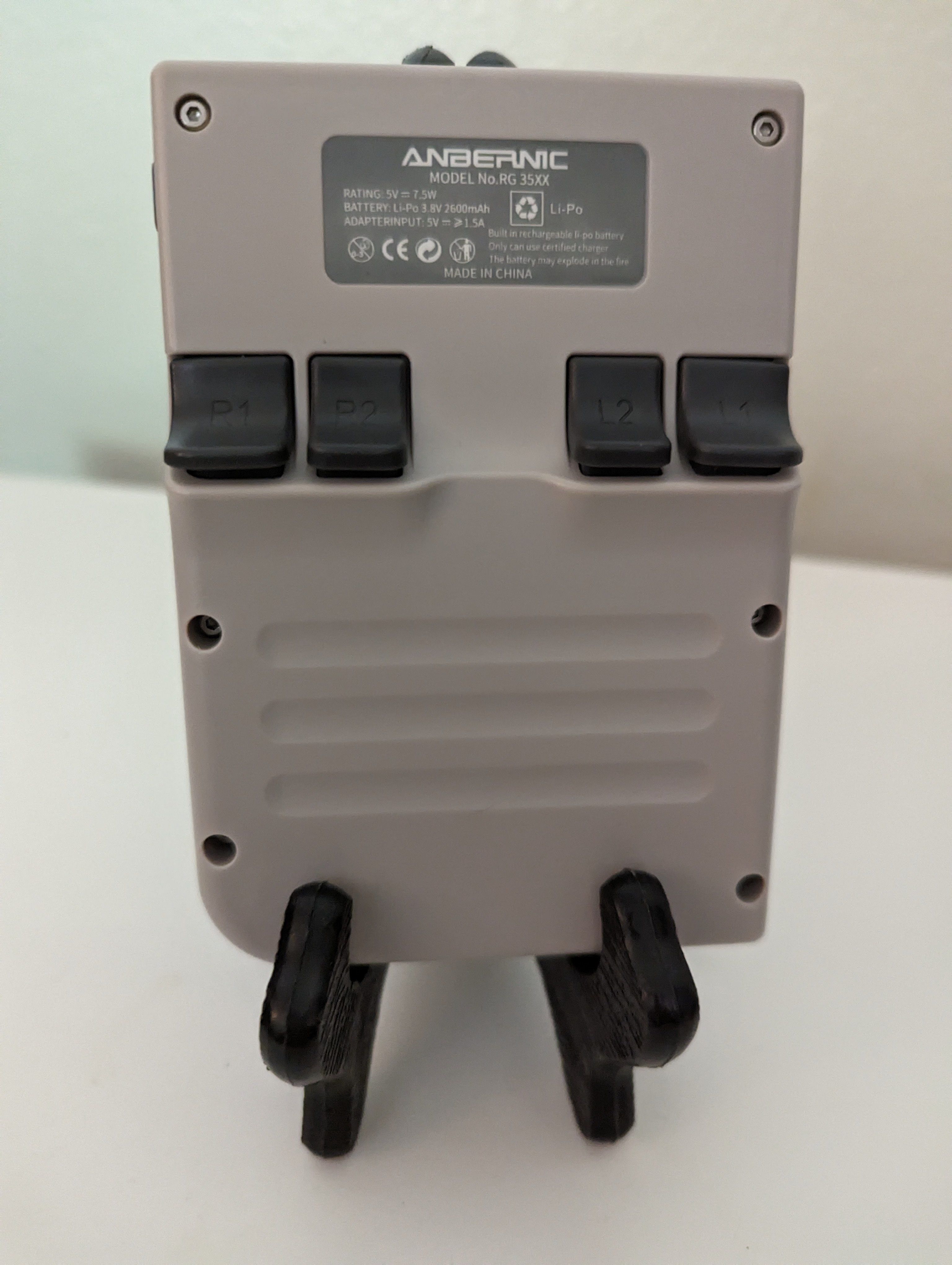
Software
The RG35xx originally came with pretty bad software. It works … OK, but the UI feels dated like embedded Linux systems from a decade ago. It appears to be a stripped down Android build that only really adds busybox, their proprietary UI, and some emulators. However, recently they have them been sending devices out which can dual boot into the popular custom alternative GarlicOS.
GarlicOS seems to also use an android build environment for a simple Linux kernel and busybox. The GarlicOS UI is based off of the custom OnionOS developed for the Miyoo Mini. GarlicOS is not as mature as OnionOS, but it gets the job done. Most importantly it has the ability to instantly save state and shutoff when the power button is pressed (not sleep, but completely power down), and then launch you right back into your game when powered back up. You even have a nice menu with images to jump directly back into your play history with auto save states.
Unfortunately, as of writing, GarlicOS is not open source. However, you are able to configure a ton of it with config files and image assets stored on the micro-SD card. There are many themes available that the community has made.
The closed source nature of GarlicOS may soon change. Black Seraph, the developer of GarlicOS, has been working on a rewrite of GarlicOS that he claims will be open source. Progress for a first release sounds like it will be soon.
Strangely, both the stock OS and GarlicOS do not include drivers that take advantage of the GPU. This helps a bit with battery life, and games work fine up through the PS1 (not including N64) without the GPU drivers. For my use case this is probably fine. N64 and Dreamcast are nice to haves but not needed.
If you do want GPU drivers, there is another newer option for custom firmware called Kokiri. Kokiri is a Batocera build for the RG35xx. This project is open source, and it includes the Linux build information for the SOC and GPU. Kokiri images do have the GPU drivers included by default in the current beta.
The beta of Kokiri is a bit buggy still, but it is very near completion. With Kokiri you can play some N64 and Dreamcast games, and overall graphics performance is improved.
Kokiri also has the ability to be ran on a smaller microSD card in slot 1 with your GarlicOS card in slot 2. So, you can switch back and forth by swapping around the cards whenever you want.
Kokiri right now, still has a bit more friction with pick up and play. I’ve reconfigured Retroarch on my install a bit to be a little better about this, but it still requires a few extra menu clicks both when starting up and shutting down.
The GPU also seems to drain the battery a bit faster (still over 3hrs of play time though), and the system gets warm (not hot).
So, I mostly just use Kokiri to experiment with, as N64 and Dreamcast are only nice to have options.
I do greatly appreciate this project's work to open source a buildroot config for the SOC and GPU. With this you can easily make your own custom firmware and utilize the GPU.
Maybe I’ll build a custom TIC-80 handheld build.
Given these options, today, I would recommend GarlicOS for most people, and it is what I mostly use.
Retroarch
On GarlicOS all emulators are ran through RetroArch cores. This is great, because you can customize it however you want.
You can have integer scaled, correct aspect ratio Gameboy games with a realistic custom bezel overlay.
You can add CRT filters to make older consoles look like they did 20 years ago.
The filters, overlays, and scaling work great on the 4:3 LCD. Emulated handhelds look as big or bigger than they did in the past, and CRT games fill the screen and look great.
Rom Sets
If you are looking for a rom set to get you started, there is a curated one called “Tiny Best Set Go!”. This has options for 16GB, 64GB, and 128GB micro SD cards. It also comes with image sets pre-configured for GarlicOS. This can save you tons of time setting up your SD card.
I always suggest looking for these on archival sites, but in the case of this device, there is a helper site with more info.
But if all of the custom software sounds like too much work … the stock OS is alright. It works. It even comes with its own rom set pre-configured for you.
Hacking
I already talked about compiling custom firmware with the Kokiri build information. With that, software hacking of this device is pretty wide open.
Hardware wise you have a lot of options that range from free to a little spendy and from easy to hard in difficulty.
You can fix the D-pad’s false direction inputs by opening the device and putting some electrical/kapton tape on some of the contacts. I have tried this, and it indeed does help.
You can also fix the rattling of the “triggers” by opening up the case and putting some electrical tape over the hinge clips of the “triggers”. This did not affect my functionality at all, and the rattling is gone.
Neither of these issues are major, but they were so cheap and easy to fix I would recommend them to you if you have tape, a screwdriver, and 30 minutes.
There are also customizations you can do.
- Custom buttons can be 3D printed or ordered in a variety of colors.
- You can get 3D printed trigger buttons that have different angles and feels if the slim paddles that it comes with aren’t to your liking.
- You can add skins/decals to the case.
- You can unscrew one of the case screws, attach a lanyard to it, and screw it back in for a wrist strap.
- If you got the gray model, then you can even use Rit dye to recolor the shell nearly any color you want.
For me, I did the tape mods, and then got a crochet pouch to store it in my purse.
Is It Perfect?
No, of course it’s not perfect. It is incredibly fun though and the form factor really does feel right for playing classic games. Gameboy games are hard to get into on a PC or a big handheld for me, but I love playing them on the RG35xx.
It’s a cheaply made product, but Anbernic seem to have cut the right corners to make it a good price while making it feel more premium than it is.
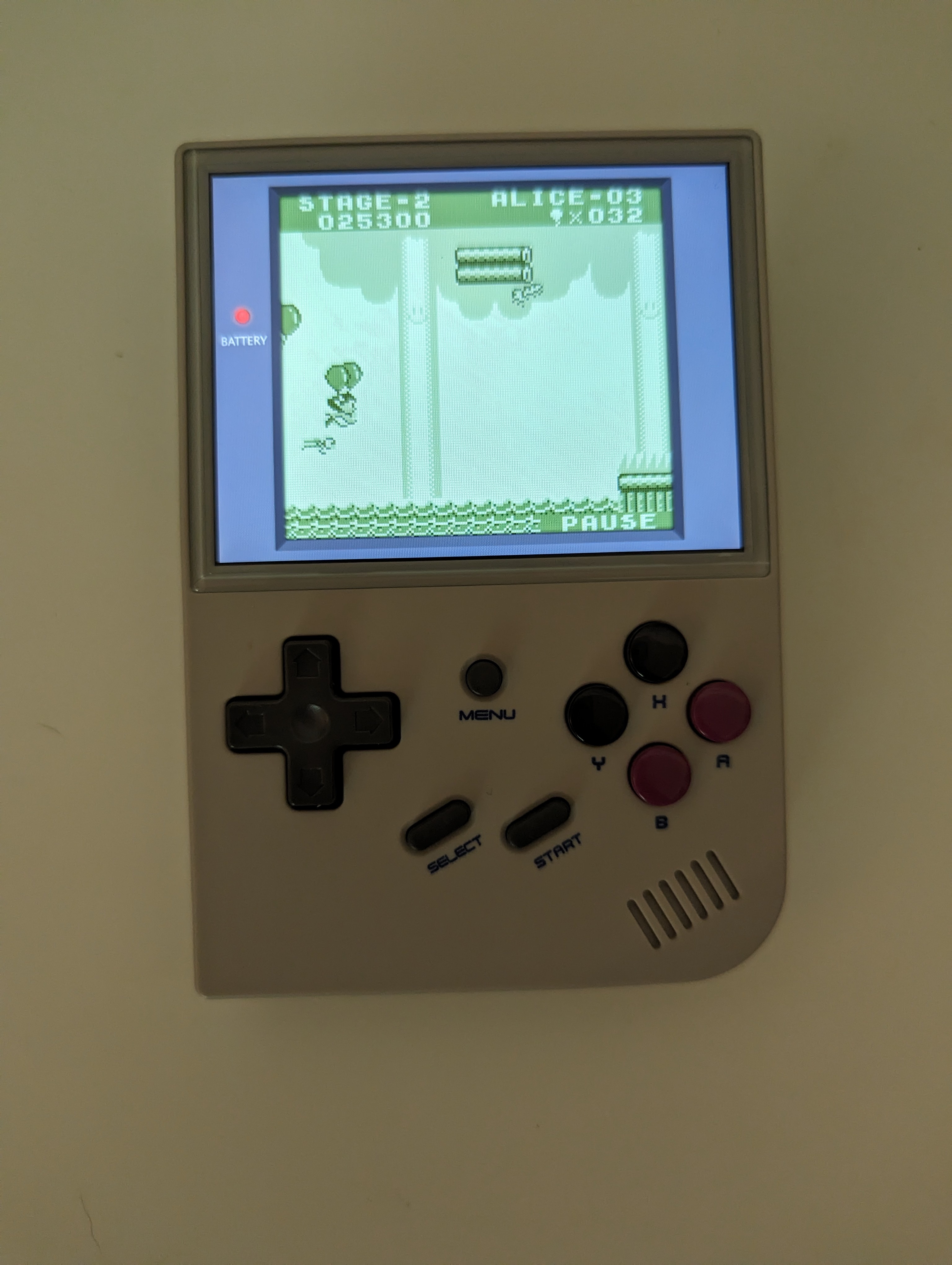
I recently discovered Balloon Kid. A sequel of Balloon Fight for the Gameboy. The play style of Balloon Kid is a bit different than its predecessor, and reminds me of a souped up Flappy Bird. It’s incredibly fun, and perfect for pick up and play. I am in love with this game.
At the end of the day, I have a lot of fun with it, it checks most of my boxes, it’s easy to find online in the $55 - $80 range, and if you hunt for deals you can find them for as low as $30 new.
If you want a little “on the go” retro handheld I think it’s great. If you want to hack it you can. Or you can just play it. That’s what it is best at. Just easily playing classic games.